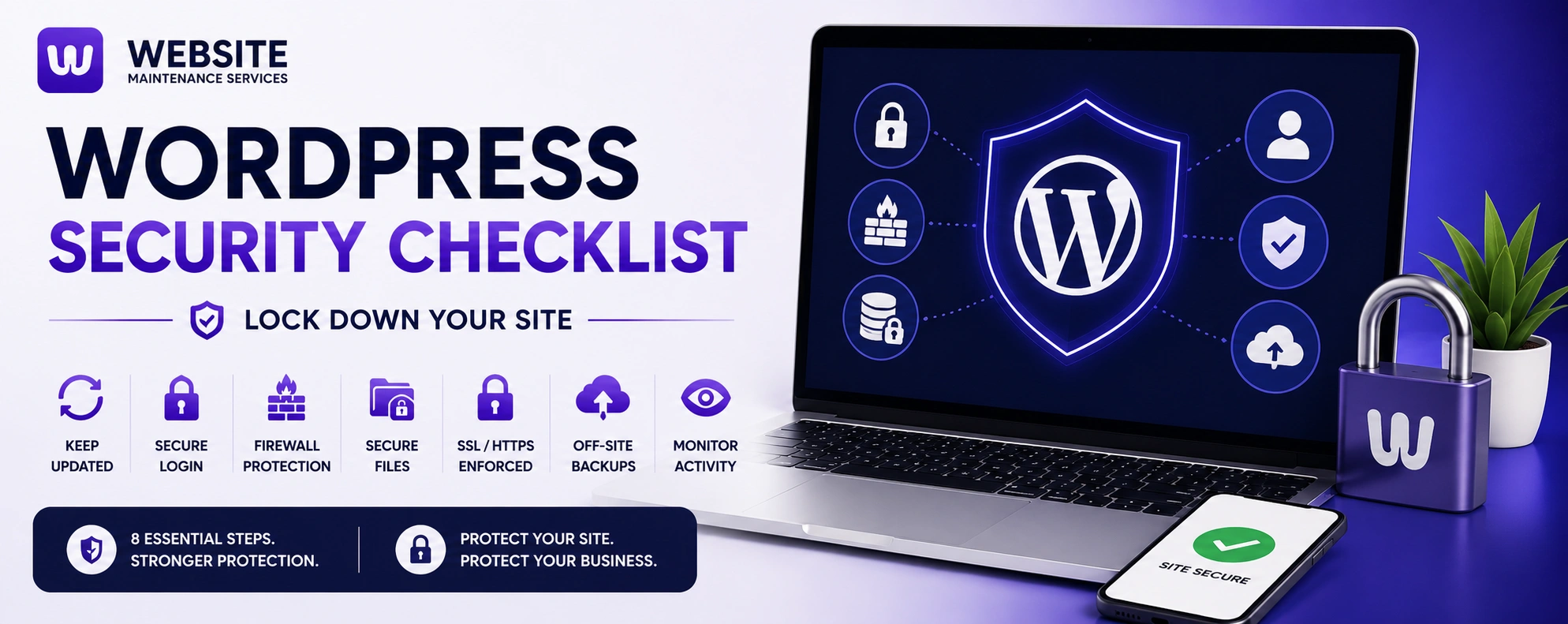
WordPress powers over 43% of the web, and that popularity makes it the internet's biggest target. The reassuring part is that the vast majority of these attacks are automated bots hunting for easy targets — default settings, outdated plugins, weak passwords — and a hardened site simply isn't worth their effort.
The numbers tell the story: security researchers track more than 250 new plugin vulnerabilities every week, brute-force login attacks make up roughly 40% of all attempted breaches, and thousands of WordPress sites are compromised every single day.
This checklist walks through every layer of WordPress security, ordered by priority. Start at the top and work down. You don't need to be a developer to do most of it, and each step closes a door that attackers actively try.
One key distinction up front: a security plugin is like an alarm system — it monitors and alerts. Security hardening is reinforcing the doors, windows, and walls themselves. You want both, but hardening is the foundation.
This is the single most impactful thing you can do, because outdated software is the number-one cause of hacked WordPress sites. Around 96% of WordPress vulnerabilities are found in plugins and themes — not the core software — and attackers exploit newly disclosed flaws within hours.
- Enable automatic updates for minor WordPress core releases. These are security patches and should apply themselves.
- Update plugins and themes weekly at minimum, ideally tested on a staging copy first so an update can't break your live site.
- Delete every plugin and theme you're not actively using. Inactive code still contains exploitable vulnerabilities. Keep only your active theme plus one fallback.
- Check the "last updated" date on your plugins. If one hasn't been updated in over six months, find a maintained alternative — abandoned plugins are open doors.
- Run a supported PHP version (8.2 or higher in 2026). Older versions no longer receive security patches.
The login page is the most attacked URL on any WordPress site, because its location is predictable and bots hammer it thousands of times per second. Hardening it stops the most common attack outright.
- Never use "admin" as your username. It's the first guess in every attack script. If you're still on "admin," create a new administrator account and delete the old one.
- Enforce strong, unique passwords of at least 12 characters for every user, regardless of role.
- Enable two-factor authentication (2FA) for all admin and editor accounts. This is the highest-impact single step — even a stolen password is useless without the second factor.
- Limit login attempts — lock out an IP after 3–5 failed tries. This defeats brute-force attacks directly.
- Consider changing your login URL away from the default /wp-admin to remove your site from the path of most automated bot attacks.
- Avoid username enumeration by ensuring display names differ from login names.
A good security plugin adds the monitoring and active defense layer that hardening alone doesn't provide.
- Install a reputable security plugin (Wordfence, Sucuri, Shield, or similar) to provide firewall protection, malware scanning, and login monitoring.
- Enable the web application firewall (WAF) to block malicious traffic before it reaches your site.
- Turn on file integrity monitoring, which alerts you the moment core files are modified — so you catch an infection in hours, not weeks.
- Enable malware scanning on a regular schedule.
A few configuration changes eliminate entire categories of attack. Some of these are more technical — if you're not comfortable editing server files, this is a good point to get help.
- Protect wp-config.php, which holds your database credentials and secret keys. Move it above the web root if your host allows, and restrict its permissions (chmod 600).
- Set correct file permissions — 755 for directories, 644 for files.
- Disable the built-in file editor by adding
define('DISALLOW_FILE_EDIT', true);to wp-config.php, so an attacker who gets into your dashboard can't inject code through it. - Disable directory browsing so visitors can't list your files and folders.
- Protect your .htaccess file from direct access.
- Disable XML-RPC unless you specifically need it (for Jetpack or certain apps) — it's a common brute-force multiplier.
SSL is baseline in 2026, not optional. It encrypts data between your site and visitors, and browsers flag sites without it as "Not Secure."
- Install an SSL certificate (most quality hosts provide one free).
- Force HTTPS across the entire site, redirecting all HTTP traffic.
- Fix any mixed-content warnings so every resource loads securely.
Backups are your safety net — if everything else fails, a clean backup is the difference between a quick recovery and starting over.
- Automate backups of your files and database on a schedule that matches how often your site changes.
- Store backups off-site, not on the same server as your site. A backup on a compromised server can go down with it.
- Retain at least 30 days of backup history, so you can roll back to before an infection.
- Test your restores. A backup you've never restored isn't a backup — it's a hope.
Your hosting environment is part of your security posture.
- Choose quality managed WordPress hosting where possible — good hosts build in server-level firewalls, automatic updates, malware scanning, and SSL, giving you a strong baseline automatically.
- Be cautious on shared hosting, where another compromised account on the same server can be a risk. Consider managed or VPS hosting for business-critical sites.
- Audit user accounts and roles — give each user the minimum access they need, and remove old or unused accounts.
Security isn't a one-time setup — it's an ongoing habit. The sites that stay safe are the ones being watched.
- Monitor for unauthorized changes and new admin accounts regularly.
- Review security scan results and logs so you spot unusual activity early.
- Keep an incident plan so you know what to do if something happens — including who to call.
- Schedule a monthly security review to run through this checklist again.
EmergencyWhat to Do If Your WordPress Site Is Already Hacked
If you're reading this because your site is already compromised, work through this in order: put the site into maintenance mode or take it offline to protect visitors, contact your host (many have a security response process), and restore from a clean pre-infection backup if you have one. If you don't, scan with a security plugin or use a professional malware removal service to clean the site.
The Real ChallengeSecurity Is Ongoing — You Don't Have to Do It Alone
Working through this checklist once puts your site ahead of the vast majority of WordPress installations on the web. But the reason WordPress security is hard isn't any single step — it's that it never stops. New plugin vulnerabilities appear weekly, updates need testing, backups need verifying, and someone has to be watching. Miss a few weeks and the doors quietly reopen.
That's exactly what a managed maintenance and security service handles for you: updates tested on staging, continuous security monitoring, malware scanning, off-site backups, and fast response if something goes wrong — so the whole checklist runs in the background without you thinking about it.
Get a free website security audit and we'll show you exactly where your site is exposed and how to close the gaps — whether you harden it yourself or have us keep it locked down for you.
Get a Free Security Audit · See Our Maintenance & Security Plans · Talk to Our Team
FAQFrequently Asked Questions
What is the most important WordPress security step?
Can a security plugin make my WordPress site completely secure?
Why do WordPress sites get hacked so often?
How often should I check my WordPress security?
Do I need to disable XML-RPC on WordPress?
What should I do first if my WordPress site is hacked?
Lock Down Your Site — Without the Guesswork
Get a free website security audit and we'll show you exactly where your site is exposed and how to close the gaps — whether you harden it yourself or have us keep it locked down for you.