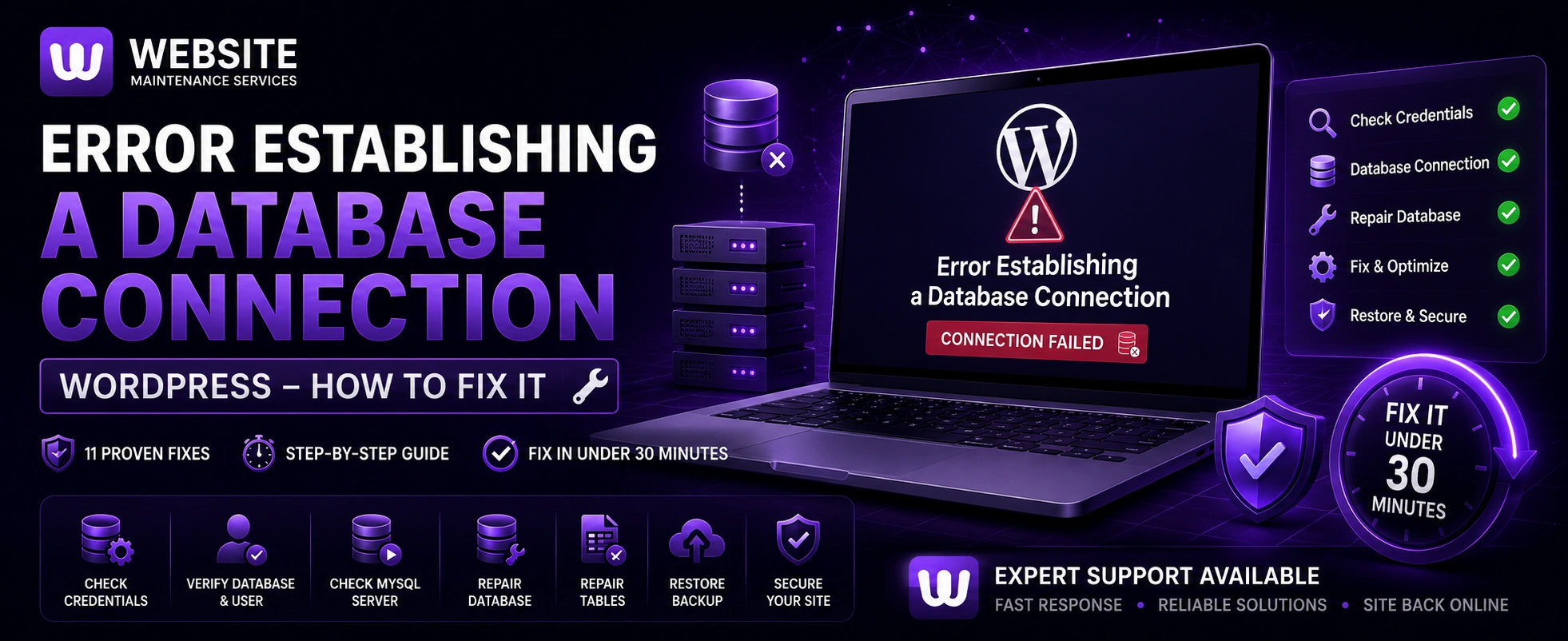
This error means WordPress cannot connect to your MySQL database — and without that connection, it cannot load anything at all. The good news: it has a well-defined set of causes, and most can be fixed in under 30 minutes.
Few WordPress errors are as alarming as this one:
Your site is completely blank. Visitors see nothing. Your admin dashboard shows the same message. And WordPress gives you zero indication of what went wrong or how to fix it.
This error means WordPress cannot connect to your MySQL database — and without that connection, it cannot load anything at all. Every piece of content, every setting, every page on your site lives in that database. When the connection fails, your site goes dark.
The good news: this error has a well-defined set of causes, and most of them can be fixed in under 30 minutes. This guide walks you through every possible cause and every fix, in the right order, so you can get your site back online as quickly as possible.
MeaningWhat Does "Error Establishing a Database Connection" Mean?
WordPress is not a static website. Every time someone visits a page, WordPress runs PHP code that connects to a MySQL database, retrieves your content, and builds the page dynamically. The database is where everything lives — posts, pages, settings, users, plugin configurations, everything.
"Error Establishing a Database Connection" means that PHP tried to connect to MySQL using the credentials stored in your wp-config.php file — and failed. The connection was refused, timed out, or could not be established at all.
This can happen for several reasons:
- The database credentials in
wp-config.phpare wrong - The MySQL database server is down or overloaded
- The database itself has been corrupted
- Your hosting account has been suspended
- The database user doesn't have the right permissions
- You've exceeded your hosting plan's database connection limits
- A recent migration moved the database but the credentials weren't updated
Each of these has a different fix. The steps below address them in order of most to least common.
Step 1Check If It's a Temporary Server Issue
Before doing anything else, determine whether the error is consistent or intermittent.
- Reload your site a few times
- Wait 2–3 minutes and try again
- Ask someone in a different location to try loading your site
If the error appears only occasionally and your site loads fine most of the time, the problem is likely your MySQL server temporarily running out of connections — common on shared hosting during traffic spikes. This is a hosting capacity issue rather than a configuration problem.
If the error is consistent every time you load the site, proceed with the steps below.
Also check whether your WordPress admin dashboard (yoursite.com/wp-admin) shows the same error, or a different message. If the frontend shows the database error but wp-admin loads fine, the problem is specifically with your site's front-end configuration. If both are down, the issue is with the database connection itself.
Step 2Verify Your Database Credentials in wp-config.php
The most common cause of this error is incorrect database credentials — usually after a migration, a hosting change, or a manual edit that introduced a typo.
Your WordPress database credentials are stored in wp-config.php, located in your site's root directory (public_html/).
How to access wp-config.php:
- Log in to your hosting control panel
- Go to File Manager → public_html
- Find
wp-config.phpand right-click → Edit
Or connect via FTP and open the file in a text editor.
Look for these four lines:
define( 'DB_NAME', 'your_database_name' );
define( 'DB_USER', 'your_database_username' );
define( 'DB_PASSWORD', 'your_database_password' );
define( 'DB_HOST', 'localhost' );
Verify each value:
DB_NAME — The name of your WordPress database. Find this in your hosting control panel under MySQL Databases. It usually looks like username_databasename.
DB_USER — The MySQL username that has access to this database. Also found in MySQL Databases in your hosting panel.
DB_PASSWORD — The password for that MySQL user. If you don't remember this, you can reset it in your hosting panel under MySQL Databases → MySQL Users.
DB_HOST — Almost always localhost. However, on some hosting configurations it may be a different value (like 127.0.0.1, or a specific hostname provided by your host). If localhost isn't working, check with your hosting provider for the correct DB_HOST value.
Common mistakes to look for:
- Extra spaces before or after the values
- Missing or extra quotation marks
- Mismatched database name (e.g., database was renamed during migration)
- Wrong password after a recent password change in the hosting panel
- Wrong DB_HOST after moving to a new server
After correcting any errors, save the file and reload your site.
Step 3Verify the Database Exists and the User Has Access
Even if your credentials are correct in wp-config.php, the database connection will fail if:
- The database was accidentally deleted
- The MySQL user was removed from the database
- The user doesn't have the right permissions
How to check:
- Log in to your hosting control panel (cPanel, hPanel, etc.)
- Go to MySQL Databases (or Databases section)
- Verify that your WordPress database is listed
- Verify that your MySQL user is assigned to that database with All Privileges
If the database exists but the user isn't assigned:
- Scroll down to "Add User To Database"
- Select your MySQL user and your WordPress database
- Click Add
- Grant All Privileges
- Click Make Changes
If the database doesn't exist:
This is a more serious situation. If your database has been accidentally deleted, you will need to restore from a backup. Skip to the backup restoration section below.
Step 4Check If Your MySQL Server Is Running
Sometimes the MySQL database server itself goes down — due to server maintenance, a crash, or resource exhaustion. This is a hosting-level issue you can't fix yourself, but you can confirm it.
Via your hosting control panel:
Many hosts show server status in the control panel. Look for a "Server Status," "MySQL Status," or "Database" section.
Via phpMyAdmin:
- Go to your hosting control panel
- Click on phpMyAdmin
- Try to log in
If phpMyAdmin fails to load or shows a connection error, MySQL is likely down. Contact your hosting provider's support and report that MySQL is not responding. This is their problem to fix.
If you're on shared hosting and MySQL goes down, it's almost always a host-side issue — traffic from other sites on the server has exhausted MySQL connections or resources. Your host needs to be informed.
Step 5Repair Your WordPress Database
Database corruption can cause the "Error Establishing a Database Connection" message — particularly on the frontend while the admin may still partially work, or vice versa.
WordPress has a built-in database repair tool. To use it:
- Open
wp-config.phpin File Manager or FTP - Add this line before the
/* That's all, stop editing! */line:
define( 'WP_ALLOW_REPAIR', true );- Save the file
- Visit this URL in your browser:
https://yoursite.com/wp-admin/maint/repair.php- Click Repair Database (or Repair and Optimize Database for a more thorough fix)
- Wait for the repair to complete
- Remove the WP_ALLOW_REPAIR line from wp-config.php immediately after — leaving it in place is a security risk
If the repair tool fixes the error, great. If it doesn't connect at all (showing the same database error), the problem is with the connection credentials or server, not corruption — go back to Steps 2–4.
Step 6Repair Database Tables via phpMyAdmin
For more serious database corruption, you can repair individual tables directly via phpMyAdmin:
- Log in to your hosting control panel
- Open phpMyAdmin
- Select your WordPress database from the left sidebar
- Click Check All to select all tables
- From the "With selected" dropdown, choose Repair Table
- Click Go
phpMyAdmin will run through each table and repair any issues found. After the repair, reload your site.
You can also run this SQL query directly in phpMyAdmin's SQL tab to repair all tables at once:
REPAIR TABLE wp_commentmeta, wp_comments, wp_links, wp_options, wp_postmeta, wp_posts, wp_term_relationships, wp_term_taxonomy, wp_termmeta, wp_terms, wp_usermeta, wp_users;(Replace wp_ with your actual table prefix if you changed it during WordPress installation.)
Step 7Check If Your Hosting Account Has Been Suspended
If your hosting account has been suspended — for non-payment, exceeding resource limits, or a Terms of Service violation — all sites on that account will show errors, including database connection errors.
Signs your account may be suspended:
- You can't log in to your hosting control panel
- You receive emails from your host about billing or policy issues
- All sites on your account show errors, not just one
If your account is suspended, contact your hosting provider directly to resolve the suspension. This is not a WordPress issue and cannot be fixed from within WordPress.
Step 8Check Your Database Connection Limit
Many shared hosting plans limit the number of simultaneous MySQL connections. During traffic spikes — or if a plugin is opening and not closing database connections properly — you can exceed this limit, causing the connection error for new visitors.
Signs this is the cause:
- The error appears intermittently during high-traffic periods
- The error goes away after a few minutes
- You notice multiple "too many connections" entries in your server error logs
Fixes:
- Contact your hosting provider to increase your MySQL connection limit
- Optimize your WordPress site to reduce database queries (use caching, optimize slow queries)
- Identify and replace plugins that make excessive database calls (use the Query Monitor plugin when your site is accessible)
- Consider upgrading to a hosting plan with higher resource limits or a VPS
Step 9Check for Incorrect DB_HOST Value
While localhost works for most hosting setups, some configurations require a different value for DB_HOST.
When DB_HOST might not be localhost:
- Some cPanel hosts use
127.0.0.1instead - Some managed hosts provide a specific hostname (e.g.,
mysql.hostname.com) - After a server migration, the database may be on a different server
- Some cloud hosting configurations use a socket path instead of localhost
How to find the correct DB_HOST:
- Check your hosting provider's documentation
- Contact your host's support team and ask specifically what DB_HOST value you should use for WordPress
- Check your hosting control panel — some hosts display the MySQL hostname in the database section
Step 10Check File Permissions on wp-config.php
Incorrect file permissions can prevent WordPress from reading wp-config.php, causing a database connection failure.
The correct permission for wp-config.php is 600 or 640 — readable by the server but not publicly accessible.
To check and fix permissions:
- In File Manager or FTP, right-click
wp-config.php - Select "Change Permissions" or "File Attributes"
- Set permissions to 600
If permissions are set to something unusual like 777 or 000, that's likely the cause. 777 is also a security risk — it means everyone can read the file, including potential attackers.
Step 11Restore From a Backup
If you've worked through all the above steps and the error persists — or if your database has been deleted or severely corrupted — restoring from a backup is the most reliable solution.
Via your hosting control panel:
- Log in to cPanel, hPanel, or your host's dashboard
- Navigate to Backups or Backup Wizard
- Find the most recent backup from before the error appeared
- Restore the database backup (and files backup if needed)
Important: Restoring a database backup will revert all content changes made after the backup date. Make sure this is your last resort, and note any recent posts or changes you'll need to recreate.
If your host doesn't have a backup:
This is why regular off-site backups are essential. If your host has no backup and your database is gone or corrupted beyond repair, recovery may require specialist database recovery tools — or in the worst case, rebuilding the site from scratch.
This situation — losing a site because there was no backup — is exactly what our website maintenance plans are designed to prevent.
Special CaseError Establishing a Database Connection: After a Migration
This error is extremely common immediately after migrating a WordPress site to a new host or domain. During migration, the database is moved to a new server with different credentials. If the wp-config.php credentials aren't updated to match the new database, the connection fails immediately.
After a migration, always verify:
- DB_NAME matches the database name on the new server (it may have changed if the new host uses a different naming format)
- DB_USER matches the MySQL user on the new server
- DB_PASSWORD is the correct password for the new server's MySQL user
- DB_HOST is correct for the new server (not just copied from the old one)
- The MySQL user has been assigned to the database with All Privileges on the new server
Additionally, after migration you may need to update the site URL in the database if it has changed. Use WP-CLI or a search-and-replace plugin (like Better Search Replace) to update the old domain to the new domain throughout the database.
VariationError Establishing a Database Connection: Frontend vs Admin
An interesting variation of this error: sometimes the frontend of your WordPress site shows "Error Establishing a Database Connection" but you can still access wp-admin — or vice versa.
Frontend broken, admin works:
This usually indicates your site's URL settings are misconfigured. Check WordPress Admin → Settings → General and verify that the WordPress Address (URL) and Site Address (URL) are both set correctly.
Admin broken, frontend works:
Less common. Usually caused by database table corruption specifically affecting the tables WordPress admin uses, or a plugin that's broken the admin area. Try accessing yoursite.com/wp-admin/maint/repair.php as described above.
Both broken:
Full database connection failure — work through Steps 1–11 above.
PreventionHow to Prevent "Error Establishing a Database Connection" in the Future
Most occurrences of this error are preventable:
Maintain Regular Database Backups
The most important protection. Daily automated backups stored off-site mean that even if your database is corrupted or deleted, you can restore to yesterday's version in minutes. Without backups, database loss can be catastrophic.
Use Quality, Managed Hosting
Cheap shared hosting with overcrowded servers is far more prone to MySQL downtime, connection limits, and performance issues. Quality managed WordPress hosting provides better database stability, higher connection limits, and faster MySQL performance.
Keep WordPress and Plugins Updated
Outdated plugins can have bugs that cause excessive database connections or corrupt database tables over time. Keeping everything updated reduces this risk.
Optimize Your Database Regularly
Over time, WordPress databases accumulate unnecessary data — post revisions, spam comments, transients, orphaned metadata. A bloated database is slower and more prone to issues. Clean it monthly using a plugin like WP-Optimize.
Limit Database Connections
Use a caching plugin to reduce the number of database queries your site makes. Cached pages don't require database connections at all, dramatically reducing your load on the MySQL server and making you far less likely to hit connection limits.
Monitor Your Site 24/7
Uptime monitoring detects the database connection error the moment it appears and alerts you immediately — rather than letting it run for hours while visitors see a broken site. At Website Maintenance Services, 24/7 uptime monitoring is included in every maintenance plan.
Store a Copy of Your Database Credentials Securely
Keep a secure record of your database name, username, password, and host somewhere outside of your WordPress files. If you ever need to restore or migrate, having these details on hand saves significant time.
Quick ReferenceQuick Reference: Error Establishing a Database Connection Fixes
| Cause | Fix |
|---|---|
| Wrong credentials in wp-config.php | Update DB_NAME, DB_USER, DB_PASSWORD, DB_HOST |
| MySQL user not assigned to database | Add user to database with All Privileges in hosting panel |
| MySQL server down | Contact hosting provider |
| Database corrupted | Run repair via WordPress tool or phpMyAdmin |
| Account suspended | Contact hosting provider to resolve suspension |
| Too many connections | Use caching, upgrade hosting plan, contact host |
| Wrong DB_HOST | Ask hosting provider for correct value |
| Bad file permissions on wp-config.php | Set to 600 in File Manager |
| Migration — credentials not updated | Update all four DB_ values to match new server |
| Database deleted | Restore from backup |
Get HelpWhen to Call a Professional
The "Error Establishing a Database Connection" error is fixable by most website owners by working through the steps above. However, consider calling a professional if:
- You've worked through all the steps and the error persists
- Your database appears to have been deleted with no backup available
- The error is intermittent and you can't identify the cause
- Your site handles e-commerce or customer data and every minute of downtime costs real money
- The error appeared after a hack or security incident
At Website Maintenance Services, our team resolves database connection errors as part of our emergency support service — and our monthly maintenance plans include daily backups, 24/7 uptime monitoring, and database optimization to prevent these errors from occurring in the first place.
Get emergency WordPress support →
Start a maintenance plan to prevent future errors →
Summary: Fixing "Error Establishing a Database Connection" in WordPress
The error has one root cause — WordPress can't connect to MySQL — but many possible reasons why. Work through these in order:
- Check if it's temporary — reload a few times, wait a few minutes
- Verify wp-config.php credentials — DB_NAME, DB_USER, DB_PASSWORD, DB_HOST
- Confirm database and user exist in hosting panel with correct permissions
- Check if MySQL server is running — try phpMyAdmin
- Run WordPress database repair via repair.php
- Repair tables in phpMyAdmin for deeper corruption
- Check for account suspension — billing or ToS issues
- Check connection limits — may need hosting upgrade
- Verify DB_HOST is correct for your specific host
- Check wp-config.php permissions — should be 600
- Restore from backup — last resort if all else fails
The error is almost always fixable. And with proper maintenance — regular backups, uptime monitoring, and database optimization — it's almost always preventable.
Site Showing This Error Right Now?
Is your WordPress site showing "Error Establishing a Database Connection" right now? Our support team can diagnose and fix it fast.