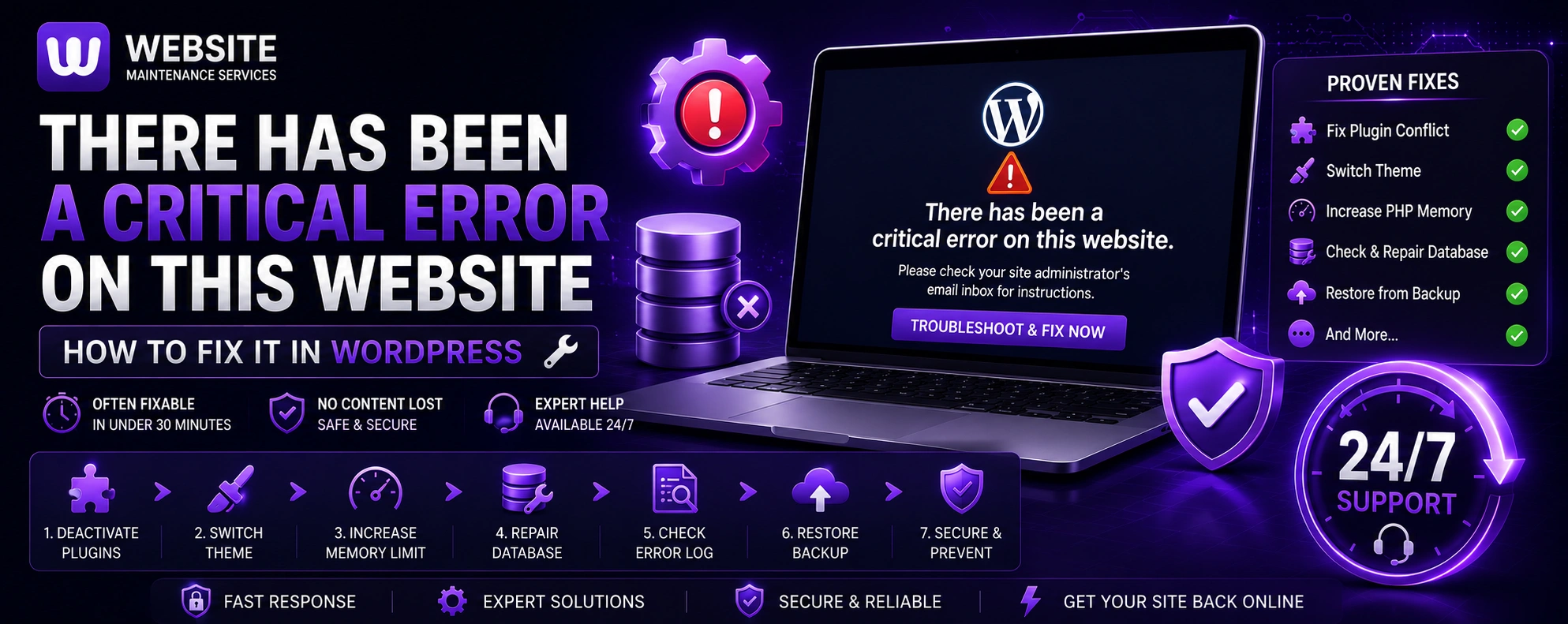
You log in to your WordPress site — or worse, a visitor tells you — and all you see is a critical error. Your site is down, the admin dashboard may be inaccessible, and WordPress isn't giving you any clear indication of what went wrong.
You log in to your WordPress site — or worse, a visitor tells you — and all you see is:
Your site is down. The admin dashboard may be inaccessible. And WordPress isn't giving you any clear indication of what went wrong.
This error is one of the most common and most alarming WordPress errors. The good news: it is almost always fixable, often in under 30 minutes, without losing any of your content. This guide walks you through every cause and every fix — in order of likelihood and ease — so you can get your site back online as fast as possible.
MeaningWhat Does "There Has Been a Critical Error on This Website" Mean?
This message is WordPress's way of telling you that a fatal PHP error has occurred — one serious enough to prevent WordPress from loading at all. Rather than showing a raw PHP error (which could expose sensitive information about your server), WordPress displays this friendly but vague message instead.
The actual error is usually one of the following:
- A PHP fatal error caused by a broken plugin or theme
- A PHP memory limit being exceeded
- A syntax error in a PHP file (often caused by manual edits or a failed update)
- A database connection failure
- A corrupted WordPress core file
- A plugin or theme conflict after an update
The error message itself tells you to check your email — WordPress sends the actual PHP error message to the administrator email address on file. Check your inbox (and spam folder) for an email from WordPress with subject "Your Site Is Experiencing a Technical Difficulty." That email will often tell you exactly which file and which line caused the error.
Step 0Before You Start: Enable WordPress Debug Mode
If you didn't receive an error email, or the email doesn't give you enough information, enable WordPress debug mode to see the actual error on screen.
Add these lines to your wp-config.php file (via FTP or File Manager):
define( 'WP_DEBUG', true );
define( 'WP_DEBUG_LOG', true );
define( 'WP_DEBUG_DISPLAY', true );
Save the file, then reload your site. The actual error message will now appear on screen, telling you exactly which file is causing the problem. Make a note of the error, then fix it using the steps below.
Important: Remove or set these back to false once you've fixed the issue. Leaving debug mode on in production exposes technical information publicly.
Method 1Deactivate All Plugins (Most Common Fix)
A broken, incompatible, or recently updated plugin is the most common cause of the WordPress critical error. Deactivating all plugins instantly eliminates this as a cause.
If you can access your WordPress admin dashboard:
- Go to Plugins → Installed Plugins
- Select all plugins using the checkbox at the top
- Choose Deactivate from the Bulk Actions dropdown
- Click Apply
- Reload your site
If your admin dashboard is also inaccessible (most common scenario):
You'll need to deactivate plugins via FTP or File Manager:
- Log in to your hosting control panel → File Manager (or connect via FTP)
- Navigate to
public_html/wp-content/ - Find the folder named
plugins - Rename it to
plugins_disabled(this deactivates all plugins instantly) - Reload your site
If your site loads, the problem is with one of your plugins. To find which one:
- Rename
plugins_disabledback toplugins - Go to your WordPress admin → Plugins
- Reactivate plugins one by one, reloading your site after each
- When the error returns, you've found the culprit
- Leave that plugin deactivated and contact the plugin developer for a fix, or find an alternative
If deactivating all plugins doesn't fix the error, move to the next method.
Method 2Switch to a Default WordPress Theme
If deactivating plugins didn't fix the error, a broken or incompatible theme may be the cause. Switching to a default WordPress theme (like Twenty Twenty-Four) will confirm this.
If you can access your WordPress admin:
- Go to Appearance → Themes
- Activate a default WordPress theme (Twenty Twenty-Three or Twenty Twenty-Four)
- Reload your site
If the admin dashboard is inaccessible:
Via FTP or File Manager:
- Navigate to
public_html/wp-content/themes/ - Find your active theme's folder
- Rename it (e.g., from
mythemetomytheme_disabled) - WordPress will automatically fall back to a default theme
If your site loads after switching themes, the problem is with your theme. Contact your theme developer for a fix, or consider switching to a well-maintained lightweight theme.
Method 3Increase the PHP Memory Limit
WordPress and its plugins require PHP memory to run. If your site hits the memory limit, WordPress crashes with a critical error. This is especially common after installing memory-intensive plugins or after your site grows larger.
How to increase the PHP memory limit:
Option A — Via wp-config.php:
Add this line to your wp-config.php file, above the line that says /* That's all, stop editing! */:
define( 'WP_MEMORY_LIMIT', '256M' );Option B — Via .htaccess:
Add this line to your .htaccess file:
php_value memory_limit 256MOption C — Via php.ini:
If your host allows a custom php.ini file, create one in your public_html folder containing:
memory_limit = 256MOption D — Via hosting control panel:
Many hosts (including Hostinger, SiteGround, and cPanel-based hosts) allow you to change PHP settings directly in the control panel. Look for "PHP Configuration" or "Select PHP Version" and find the memory limit setting.
After increasing the memory limit, reload your site to see if the error is resolved.
Method 4Re-Upload WordPress Core Files
If a WordPress core file has been corrupted — by a failed update, a hack, or a server error — replacing it with a fresh copy will fix the problem.
- Go to wordpress.org/download/ and download the latest version of WordPress
- Unzip the downloaded file on your computer
- Via FTP or File Manager, upload and overwrite everything except the
wp-contentfolder andwp-config.php - These two items contain your content and settings — do not replace them
This replaces all core WordPress files with clean versions while leaving your content, plugins, themes, and settings completely intact.
Method 5Check and Restore wp-config.php
The wp-config.php file contains your database credentials and core WordPress settings. If this file has been accidentally corrupted — for example, by a failed edit or a malicious code injection — WordPress will throw a critical error.
How to check:
- Access your site via FTP or File Manager
- Download a copy of
wp-config.phpto your computer - Open it in a text editor (Notepad++, VS Code, or similar)
- Verify the database credentials are correct:
DB_NAME— your database nameDB_USER— your database usernameDB_PASSWORD— your database passwordDB_HOST— usuallylocalhost
- Check that there is no extra code at the very top or bottom of the file that wasn't there before
If you find incorrect credentials, update them to match your actual database settings (found in your hosting control panel under MySQL Databases).
If you find injected code you didn't add — your site may have been hacked. See our WordPress malware removal guide for next steps.
Method 6Check the WordPress Debug Log
If you've enabled debug mode (Method 0 above) but the error isn't showing on screen, it may be written to a log file instead.
- Via FTP or File Manager, navigate to
public_html/wp-content/ - Look for a file named
debug.log - Open it and scroll to the bottom — the most recent errors will be there
- The log will tell you exactly which file and line is causing the error
Use this information to identify the specific plugin, theme file, or core file causing the problem, then fix it using the relevant method above.
Method 7Restore From a Backup
If none of the above methods work, or if you can't identify what caused the error, restoring your site from a recent clean backup is the most reliable solution.
Via your hosting control panel (Hostinger, cPanel, etc.):
- Log in to your hosting panel
- Go to Files → Backups
- Select the most recent backup from before the error started
- Restore both files and database
Via a WordPress backup plugin:
If you have a backup plugin like UpdraftPlus, All-in-One WP Migration, or BlogVault, you can restore from the plugin's backup storage.
Important: Restoring from backup will revert any content changes made after the backup date. Make sure you've exhausted other options first, or note what content you'll need to re-add after the restore.
Method 8Check for PHP Version Incompatibility
Sometimes a WordPress update, plugin update, or theme update introduces code that's incompatible with your current PHP version. This is increasingly common as developers write code for newer PHP versions.
Check your current PHP version:
Log in to your hosting control panel and look for a PHP version selector. Note which version is currently running.
WordPress minimum requirements:
WordPress 6.x requires PHP 7.4 or higher. However, some plugins now require PHP 8.0+. If you're running PHP 7.2 or older, upgrading PHP may fix the error.
Alternatively, if you recently upgraded PHP and the error appeared immediately after, downgrading to the previous version while you wait for plugin updates is a valid temporary fix.
Method 9Fix a Syntax Error in a PHP File
If you or a developer recently manually edited a PHP file — a theme's functions.php, a plugin file, or wp-config.php — and introduced a syntax error (a missing semicolon, an unclosed bracket, a misplaced character), WordPress will throw a critical error.
The debug log or error email will tell you the exact file and line number. Open that file via FTP or File Manager and look at the indicated line and the lines around it for obvious mistakes.
Common syntax errors:
- Missing semicolon at the end of a line:
$variable = 'value'→ should be$variable = 'value'; - Unclosed quotes:
echo 'Hello→ should beecho 'Hello'; - Missing closing bracket or brace
- Accidental characters added during copy-paste
If you're not comfortable editing PHP directly, restore the file from a backup or reinstall the plugin or theme from scratch.
Method 10Contact Your Hosting Provider
If you've worked through all the above steps and the error persists, contact your hosting provider's support team. Provide them with:
- The exact error message from your debug log or email
- When the error first appeared
- What changes were made to the site around that time (plugin updates, WordPress update, manual edits)
- What steps you've already tried
Hosting support teams have server-level access that can reveal issues not visible from the WordPress or file management level — including server configuration problems, file permission issues, or MySQL errors.
ReferenceCommon WordPress Errors and What They Mean
Beyond the critical error, WordPress has several other common error messages. Here's a quick reference:
| Error Message | Most Common Cause | Quick Fix |
|---|---|---|
| "There has been a critical error on this website" | PHP fatal error, plugin/theme conflict | Deactivate plugins, switch theme |
| "Error establishing a database connection" | Wrong DB credentials or MySQL down | Check wp-config.php credentials |
| "White Screen of Death" | PHP memory limit, fatal error | Increase memory limit, check debug log |
| "Sorry, you are not allowed to access this page" | User role/capability issue | Check user roles, reset permissions |
| "The site is experiencing technical difficulties" | Same as critical error — PHP fatal | Same fixes as critical error |
| "Briefly unavailable for scheduled maintenance" | Update stuck in maintenance mode | Delete .maintenance file in root |
| "Parse error: syntax error" | Manual PHP file edit introduced bad syntax | Fix or restore the indicated file |
| "403 Forbidden" | File permission issue or security plugin blocking | Check file permissions, check .htaccess |
| "404 Not Found" on all pages | Permalink settings lost | Settings → Permalinks → Save |
| "Too many redirects" | Plugin conflict or misconfigured URL settings | Check WordPress URL settings, deactivate plugins |
| "Allowed memory size exhausted" | PHP memory limit too low | Increase WP_MEMORY_LIMIT |
| "Maximum execution time exceeded" | Script taking too long (slow server or heavy plugin) | Increase max_execution_time in php.ini |
PreventionHow to Prevent WordPress Critical Errors in the Future
The vast majority of WordPress critical errors are preventable. Here's how to protect your site:
Always Test Updates on a Staging Site First
Never update plugins, themes, or WordPress core directly on your live site. Use a staging environment to test updates before applying them to production. Most quality hosting providers offer one-click staging. If yours doesn't, plugins like WP Staging can create a staging copy.
Keep a Recent Backup Before Every Update
Before updating anything, make sure you have a working backup. If an update causes a critical error, you can restore immediately rather than spending hours troubleshooting.
Update One Thing at a Time
If you update 15 plugins at once and get a critical error, you have no idea which one caused it. Update one at a time, checking your site after each update.
Use a Child Theme for Custom Code
If you add custom PHP code to your theme, always use a child theme. Changes to a parent theme get overwritten on update, and if your custom code contains a syntax error, you want to be able to identify it and fix it cleanly.
Keep PHP Updated
Run the latest stable PHP version compatible with your plugins and themes. PHP 8.x is significantly faster and better maintained than older versions. Outdated PHP can cause compatibility issues as plugins and themes are updated.
Monitor Your Site 24/7
A critical error can appear at any time — after an automatic update in the middle of the night, after a traffic spike that pushes you over the memory limit, or after a security incident. Without monitoring, you may not find out about it for hours or days. Uptime monitoring alerts you the moment your site goes down, so you can respond immediately.
Install a Security Plugin
Some critical errors are caused by malware or hacking attempts. A good security plugin (Wordfence, MalCare, Sucuri) actively blocks malicious traffic and alerts you to suspicious changes before they cause a critical failure.
RecurringWhy Does the WordPress Critical Error Keep Coming Back?
If you fix the critical error but it keeps returning, there are a few likely reasons:
The underlying plugin or theme hasn't been fixed. If you reactivated a broken plugin because you need it, the error will return after the next trigger. Wait for an official fix from the developer before reactivating.
You have a memory leak. Some plugins gradually consume more and more memory until they hit the limit. Temporarily increasing the memory limit fixes the immediate error, but the underlying plugin still needs to be identified and replaced or fixed.
Your site is being attacked. Repeated critical errors after you've fixed them can indicate malicious activity — a hacker installing backdoors that interfere with your site's operation. Run a full malware scan and check for unauthorized file changes.
Automatic updates are breaking your site. WordPress can be set to apply updates automatically. If a plugin auto-updates to a broken version, the error returns automatically. Consider disabling auto-updates for plugins and reviewing updates manually, or use a staging environment to test automatic updates first.
Get HelpWhen to Call a Professional
Troubleshooting a WordPress critical error yourself is viable if you're comfortable with FTP, file editing, and basic PHP concepts. But there are situations where calling in a professional WordPress maintenance team makes more sense:
- The debug log shows an error you don't understand
- You've tried all the steps above and the error persists
- Your site handles customer data or e-commerce transactions and every minute of downtime costs you money
- The error reappears after you fix it
- You suspect the error is caused by a hack or malware
- You don't have a recent backup and need expert help recovering the site without data loss
At Website Maintenance Services, our team handles WordPress critical errors as part of our monthly maintenance plans. We also provide emergency support for sites that go down unexpectedly — with fast response times and experienced WordPress developers who've seen every error on this list and fixed it hundreds of times.
Get emergency WordPress support or start a maintenance plan →
ChecklistWordPress Critical Error: Step-by-Step Checklist
Work through these steps in order until your site is restored:
- Check your administrator email for the error details WordPress sent
- Enable WP_DEBUG in wp-config.php to see the error on screen
- Deactivate all plugins via FTP (rename the plugins folder)
- If site loads — reactivate plugins one by one to find the culprit
- If site still broken — switch to a default theme via FTP
- If site loads — your theme was the problem; contact the theme developer
- If site still broken — increase PHP memory limit in wp-config.php
- Check the debug.log file in wp-content/ for specific error details
- Re-upload fresh WordPress core files (except wp-content and wp-config.php)
- Check wp-config.php for correct database credentials and injected code
- Check PHP version compatibility with your plugins and themes
- If a PHP file was recently edited — review it for syntax errors
- Restore from the most recent clean backup if all else fails
- Contact your hosting provider with the specific error from your debug log
Summary
The "There has been a critical error on this website" WordPress message always has a specific, fixable cause. The key steps are:
- Check your email — WordPress sends the actual error to your admin address
- Enable debug mode — see the exact error on screen
- Deactivate all plugins — this fixes the error in the majority of cases
- Switch to a default theme — rules out theme conflicts
- Increase PHP memory — fixes memory-related crashes
- Re-upload core files — fixes corrupted WordPress files
- Check wp-config.php — verifies database connection
- Restore from backup — the nuclear option that always works
The best protection against future critical errors is a professional WordPress maintenance plan — keeping your software updated, your backups current, your site monitored 24/7, and a team ready to respond when something goes wrong.
Can't Get Your Site Back Online?
Dealing with a WordPress critical error right now and can't get your site back online? Our WordPress support team is available to help.
Or start a maintenance plan to prevent these issues from occurring in the future.